
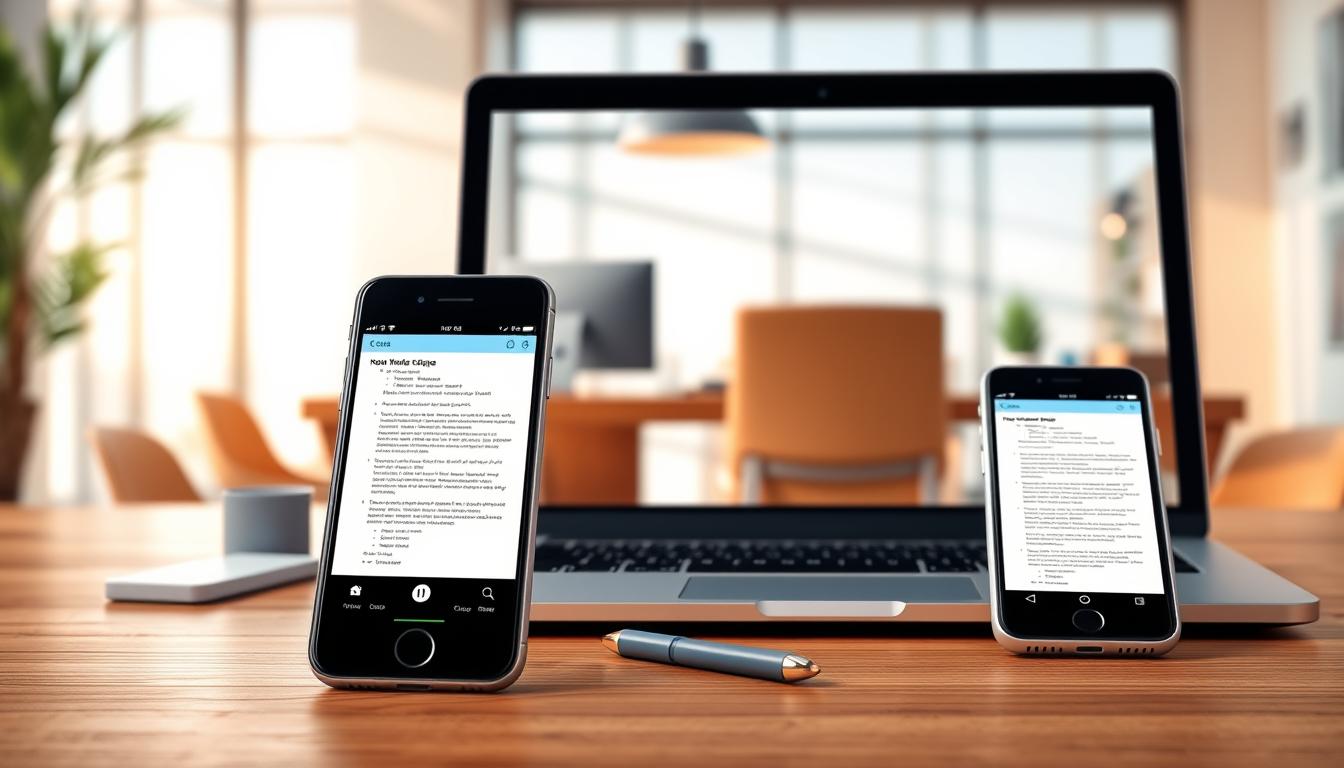
With cross-platform note-taking apps, a phone note should appear on a computer without an email. That seamless access helps people pick up work wherever they are and lowers the chance of missed changes.
A note missing from one device is not always lost. It may still be saved in the app, ready to appear when the right account and settings are in place.
A dependable setup uses matching accounts, suitable sync settings, and a check that each change arrives. People can confirm this with a harmless test note before relying on the app for work, plans, or class notes.
When a note does not show where expected, troubleshooting starts by finding the reason it is not appearing there.
Why Don’t Notes Appear on Every Device?
A note that appears on a phone but not a laptop is often still present under a different account or notebook. Check those details before deleting or reinstalling the app.
A sync conflict occurs when changes made on different devices cannot be combined cleanly into one note version. It may leave separate copies to review, rather than one clear update.
This quick checklist can narrow down the cause:
- Do both devices use the same account?
- Is the correct notebook or folder open?
- Does sync status show a pause or an error?
- Does the device have a working internet connection?
Account sign-in is an easy detail to miss, especially when a person has a work account and a personal account. A note saved under one will not usually appear in the other.
The notebook matters too. Some apps keep separate folders, workspaces, or notebooks, so a note can be in the app but outside the view currently open.
A sync status mark can show whether the app is sending or receiving changes. An error or paused state can explain why the second device still shows an older copy.
Removing the app before checking the account and notebook can make recovery harder. The likely cause tells the user whether to learn how sync works or change a setup setting.
How Do Cross-Platform Note Taking Apps Sync Notes Across Devices?
A saved note usually reaches another device through the app’s cloud service, not through a direct connection between the two devices. Cloud sync carries saved changes between devices signed into the same account.
Cloud sync carries changes between devices
When a person saves a change, the app sends it to its cloud service. Another signed-in device can then receive the updated note through that service.
The cloud service acts as a shared route, not as a direct cable between a phone and computer. Each device needs access to the same account and a version of the app or service that supports syncing.
The update may not appear at the same moment on every screen. A sync indicator can show whether the app has sent or received the latest change.
Offline edits wait for a connection
Many apps let people read or edit notes without an internet connection. Those offline edits generally sync after the device reconnects, but the timing and offline features vary by app.
A person should not assume that a change has arrived just because it was saved locally. The app’s sync indicator gives a better clue about whether the update has reached the cloud service.
If a device stays offline, its edits may wait while other devices continue to show an earlier note. Once it reconnects, the app may need time to send those changes and receive newer ones.
Understanding the route helps explain why a note may not update right away. The settings and checks that support this route make the process more reliable.
How Can Someone Set Up a Reliable Sync Workflow?
A reliable workflow needs the same account and a supported app or service on each device. A test note can show whether edits travel both ways before someone trusts the setup.
These five steps check the core settings and confirm that the app can move a change:
- Install the app on each supported device.
- Sign in to the same account on every device.
- Turn on the app’s sync setting or automatic sync.
- Allow needed network access and background app permissions.
- Create a test note, edit it on one device, and confirm the change appears on another.
Background app permissions can affect whether an app sends updates while it is not open. A device’s power or network settings may also limit background activity, so a sync check inside the app can help.
One successful test only proves that the first device sent an edit to the second. It does not prove that edits made on the second device will sync back.
For a two-way check, change the test note on the second device and look for that edit on the first. A working cloud setup is not the only way to move notes, so the right approach depends on how often they travel.
Which Storage and Sync Method Fits Each Situation?
Someone who edits notes on several devices most days has different needs from someone who keeps notes on one offline device. Cloud sync fits frequent cross-device access, while local storage keeps notes on one device unless a person transfers them.
Manual export or import gives a person control over when a file moves. The three approaches differ in how updates reach another device:
Cloud sync suits frequent cross-device access
Cloud sync suits people who switch between a phone, tablet, and computer throughout the week. The service carries changes across devices signed into the same account.
Internet access is usually needed for updates to move through the service. A person may still be able to view or edit some notes offline, depending on the app.
Local storage and manual transfer suit other needs
Local storage keeps changes on the device where they were made. It can suit someone who uses one device or needs notes available offline, but it is not a good fit when automatic updates across several devices are essential.
With manual export or import, a person saves a file and brings it into another device or app. This takes more effort than cloud sync, but can work for occasional transfers rather than continuous updates.
| Method | Internet needed for updates | How changes move | Best fit |
|---|---|---|---|
| Cloud sync | Usually needed | Service carries changes across signed-in devices | Frequent access on multiple devices |
| Local-only storage | No | Changes stay on the device unless transferred | Single-device or offline use |
| Manual export or import | Depends on the transfer method | A person exports and imports a file | Occasional transfers, not continuous updates |
The best choice depends on how often notes move and whether automatic updates matter. Even a chosen method can have delays or competing edits, so the next step is to handle those safely.
How Can Sync Delays and Conflicts Be Resolved?
If one device shows an older note, checking its connection and sync status is safer than immediately making another edit. Compare copies before replacing or deleting a note, especially when a sync conflict appears.
The symptom can point to a useful first check:
| Symptom | Likely cause | First check |
|---|---|---|
| Stale note | Offline device or paused sync | Restore the connection and check sync status |
| Missing note | Different account or notebook | Verify the signed-in account and open notebook |
| Duplicate versions | Edits made on separate devices | Compare both copies before choosing what to keep |
| Upload failure | App restriction or limited device storage | Check app permissions and available storage |
Check a device that has not updated
A stale note may mean the device has not sent or received changes yet. Restoring its connection and checking sync status can show whether the update is moving.
If an upload fails, app permissions or low device storage can block the process. Checking both can help the app save and send changes again.
Preserve both versions when edits conflict
A sync conflict can create separate copies when devices have different edits. One version may hold a detail that the other does not.
Do not delete a copy just because it looks older. Compare the content and preserve both versions until the intended one is clear.
Once the issue is resolved, habits that limit the impact of future sync problems can protect important notes.
How Can People Protect Notes From Future Sync Problems?
A note appearing on several devices does not by itself mean a separate recoverable copy exists. Cloud sync is not necessarily an independent backup, and a deletion can spread to connected devices.
Sync gives people access to the same notes across devices. A backup is an independent copy kept apart from the synced notes, so it can help if the main copy disappears.
Some apps offer version history, which keeps saved earlier copies of notes. A person can check whether this feature is available and how it works before needing an older version.
For especially important notes, keep a separate copy in a safe place. The copy should be in a format that can be opened, and checking it once confirms it is usable.
A second connected device is not automatically a backup. If a person deletes a note, that deletion may sync to the other devices too.
A useful next step is to make a test edit and confirm it arrives elsewhere, then check that important notes have a separate copy.
Conclusion
Reliable access starts with a setup that has been tested, not merely enabled. Using the same account on each device gives changes a shared path.
A quick check can catch missed changes before they affect a task or plan. Important notes also need an independent copy, since cloud sync alone may not protect them.
Make a test edit on one device, confirm it appears on another, and check that important notes have a separate backup.