
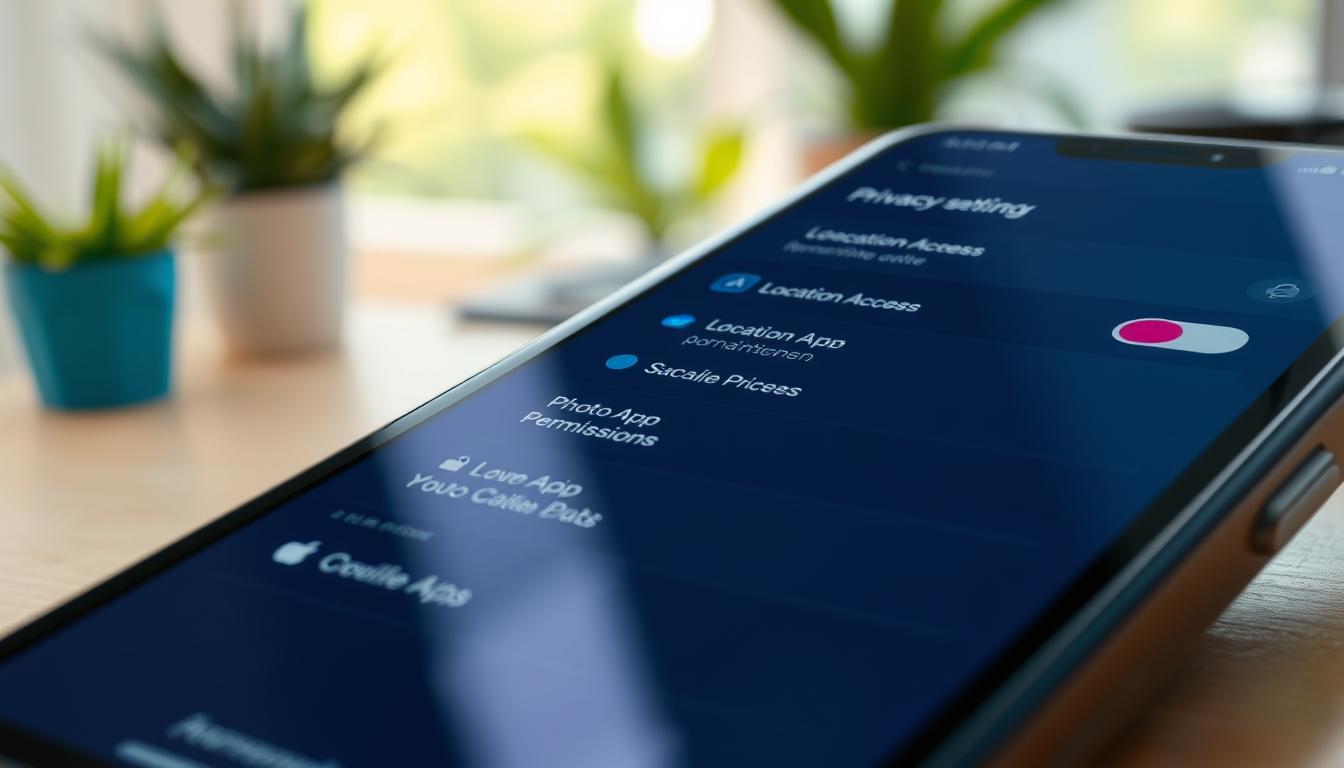
App permission management matters when a familiar photo app still reaches an entire library it no longer needs. That access may include personal data the app does not need for its current task. A quick review can help limit exposure and reduce unwanted sharing.
The least-privilege approach means giving an app only the access needed for its current task, for only as long as needed. It offers a practical way to set limits without removing every useful feature.
Settings differ between an iPhone and Android devices, and labels can change with each operating-system version. Restricting access can also affect features that rely on it, such as photo editing or navigation.
A quick audit can show which apps and data deserve attention first. It starts with apps that are no longer used and access that seems out of place.
What App Permission Management Should Check
The first review should focus on unused apps and access that does not fit an app’s purpose. An app access audit should compare each permission with the task the app performs today. A familiar name does not mean the app is automatically entitled to every permission it requests.
A privacy dashboard or permission history can help show which apps used access recently, where those tools are available. Recent activity can make an old permission easier to spot, though it does not show whether the access still serves a useful task.
- Find apps the person no longer uses.
- Check access to sensitive data or sensors.
- Question access that seems unrelated to the app’s function.
- Look for access broader or more persistent than the task requires.
These checks help sort a long app list into items worth reviewing first. A phone’s activity record may also show when an app used a sensor or data type.
Next, the review can focus on what common permissions reveal and when an app may reasonably need them.
Which Permissions Reveal the Most Personal Data?
Permissions can expose more than the feature that first prompted a request. Location access, photos, microphone access, and contacts can each reveal details beyond a single app task. The same permission may still be useful when it supports a clear feature.
| Permission category | What it can expose | Example of a legitimate app task | A lower-access option to consider |
|---|---|---|---|
| Location | Places a person visits | Navigation needs location to guide a route | Allow access only during use |
| Photos | Images and, in some cases, details about people or places in image metadata | A photo editor needs selected images | Select only the images to edit |
| Microphone | Sound while an app is using it | A calling app needs it during a call | Allow it only for the call feature |
| Contacts | Names and contact details | A messaging app can use them to find people | Choose contacts individually, if offered |
A photo library may include images of other people, while location access can reveal routine trips. Microphone access can capture sound while an app is using it, and contacts can disclose names and details.
An app’s intended function does not by itself justify access at all times. A photo editor may need images for one edit, not the whole library. The next step is finding these controls on each phone platform.
How to Review Permissions on an iPhone
From the iPhone Home Screen, the user opens Settings to review app access. Settings provides both app-level controls and category-based privacy controls. The two views can help identify access that does not fit a current task.
Find app-level permissions in Settings
In Settings, the user can scroll to an app’s individual page and review the controls listed there. These controls can show which data or sensors that app may use.
For a category view, the user opens Settings, then Privacy & Security. The page groups controls such as location, photos, microphone, and contacts. Menu names and available controls can vary by iOS version.
Review access by data category
The user can open a category to see which apps have access. A narrower available option may fit better than broad access, such as selecting images instead of sharing an entire photo library.
If no narrower setting fits, the user can turn access off. The user should then return to the control to confirm that the setting changed.
An app may ask for access again when someone uses a feature that needs it. The user can weigh that request against the task at hand. Android devices use a similar review, though menu labels can differ.
How to Review Permissions on Android
If Permission Manager is not easy to find, the user can search for it in Settings. On many Android phones, Permission Manager groups controls under Settings privacy controls. Menu names and paths vary by Android version and device maker.
- The user opens Settings and searches for Permission Manager if needed.
- The user chooses a permission category, such as microphone or contacts.
- The user inspects the apps listed as allowed for that category.
- The user changes an app’s access to a narrower option or denies it.
On supported devices, the privacy dashboard can show recent access. It may help connect an app with a time when a sensor or data type was used.
A manufacturer may use different menu labels or place the controls elsewhere. Once the user finds the controls, the next choice is how much access suits the task.
Which Permission Setting Fits Each Situation?
The narrowest option that still supports the task is usually the best starting point. A one-time lookup rarely needs the same location access as ongoing navigation. Location access choices vary by operating system, app, and version.
| Setting choice | What it permits | Example fit | Privacy consideration |
|---|---|---|---|
| Deny | No access to location | A game that does not use location | Location-based features may not work |
| Ask each time or one time | Access for a single request or session | Looking up a nearby place once | The app may ask again later |
| While using the app | Access while the app is open and in use | Navigation during an active route | Access stops outside the allowed use |
| Allow all the time, where available | Access in the background as well | An app that needs location while not open | This is the broadest choice |
Some phones also let the user turn off precise location. That can share a less exact area when a feature does not need a precise point.
The broadest option is not needed just because an app offers it. A user looking up a nearby café can choose a one-time option, while a route may need access during use.
After choosing a setting, the user can test whether the app still performs its intended function.
What to Check After Changing App Access
After limiting a photo app to selected images, the user can try choosing a picture for an edit. Testing the specific feature shows whether the new setting still supports the task. A working feature may not need broader access.
Test the feature that needs access
The user can test the feature that depends on the changed permission, such as placing a call or editing one photo. If it works, the narrower setting can stay in place.
If the feature cannot work, the user can consider a temporary or slightly broader option. The choice should match the feature, not every possible use of the app.
Reassess unexpected prompts
When an app asks for access again, the user can check which feature triggered the prompt. Access makes sense when that feature needs it, but the user can decline if the task works without it.
A denied permission can make a related feature unavailable without stopping every other part of the app. For example, a messaging app may lose contact lookup while still allowing a person to type a number.
Where supported, a privacy dashboard may help confirm whether an app used the data or sensor. That record can add context to an unexpected prompt.
Once the feature works as intended, the remaining question is whether the app still deserves any access.
When Should an App Lose Access or Be Removed?
An app should not keep access simply because someone granted it earlier. The choice can be to revoke access, keep narrower access, or remove the app. A permission request alone does not prove that an app is acting improperly.
- Revoke access that no longer serves a current task.
- Keep an app with narrower access if its needed feature still works.
- Consider uninstalling an app that is unused or whose core function needs unnecessary access.
Removing an app is a reasonable choice when there is no continuing need for it. Reduced access may be enough when the app remains useful and its main feature still works.
A request by itself is not evidence of misconduct; some features need specific access. The user can set a reminder to review access after installing apps or changing how an app is used.
Conclusion
Access settings can change as an app’s needs change. Permission should fit the app’s current task, and a narrower setting can be tested before removing the app. A small review can keep useful features while limiting access that no longer helps.
The next step is to choose one frequently used app and check its access to location, photos, microphone, and contacts where those categories apply. The user can then test any narrower setting against the app’s main task.