

Discover tips and tricks that elevate your iPhone experience. From hidden features to essential shortcuts, mastering these top iPhone tricks can transform how you interact with your device.
Many users overlook incredible settings and functionalities available on their iPhones. Learning these carefully guarded secrets helps you make the most of your technology.
Unlock the full potential of your device by exploring these amazing insights! Keep reading to discover the game-changing tricks that can enhance your iPhone usage.
Mastering iPhone Settings
Mastering iPhone settings can significantly enhance your user experience. By exploring your device’s settings, you can customize it in ways that make it more user-friendly. Take a moment to dive into the settings app and discover features that suit your lifestyle.
Start with the display settings. Adjusting brightness and enabling True Tone can help reduce eye strain. You can also choose between light and dark modes for a personalized look. These simple changes can make your iPhone feel more comfortable to use throughout the day.
Don’t forget about privacy settings as well. Checking app permissions lets you control what information apps can access. Keeping your data safe is essential, and adjusting these settings ensures that your personal information stays private.
Top iPhone Tricks: Boosting Battery Life
Boosting your iPhone’s battery life is crucial for staying connected. Start by adjusting screen brightness. You can lower the brightness manually or turn on Auto-Brightness. This setting automatically adjusts your screen based on the light around you, helping save battery power.
Next, check your background app refresh settings. Some apps run in the background, using battery even when you’re not using them. Go to Settings and turn off background refresh for apps that you don’t need on all the time. This simple change can make a big difference in battery life.
Lastly, using Low Power Mode is a fantastic way to extend battery life when you need it most. When your battery gets low, turn on Low Power Mode in Settings. This feature limits background activities, reduces visual effects, and helps your iPhone last longer throughout the day.
Using Camera Tricks
Using camera tricks on your iPhone can elevate your photography game. Start by exploring the Portrait mode feature. This mode focuses on your subject while softly blurring the background. It creates a professional look that makes your photos stand out and can be used for everything from portraits to close-ups of objects.
Another fun trick is utilizing the various filters available in the camera app. You can experiment with different styles to enhance the mood of your photos. Whether you want a vintage vibe or a high-contrast look, filters can easily transform an average shot into something special.
Lastly, don’t forget about the timer and burst mode features. The timer allows you to set up group shots without needing someone to press the shutter. Burst mode lets you capture multiple photos in quick succession. This is perfect for action shots or candid moments, ensuring you get the best image every time.
iPhone Accessibility Features
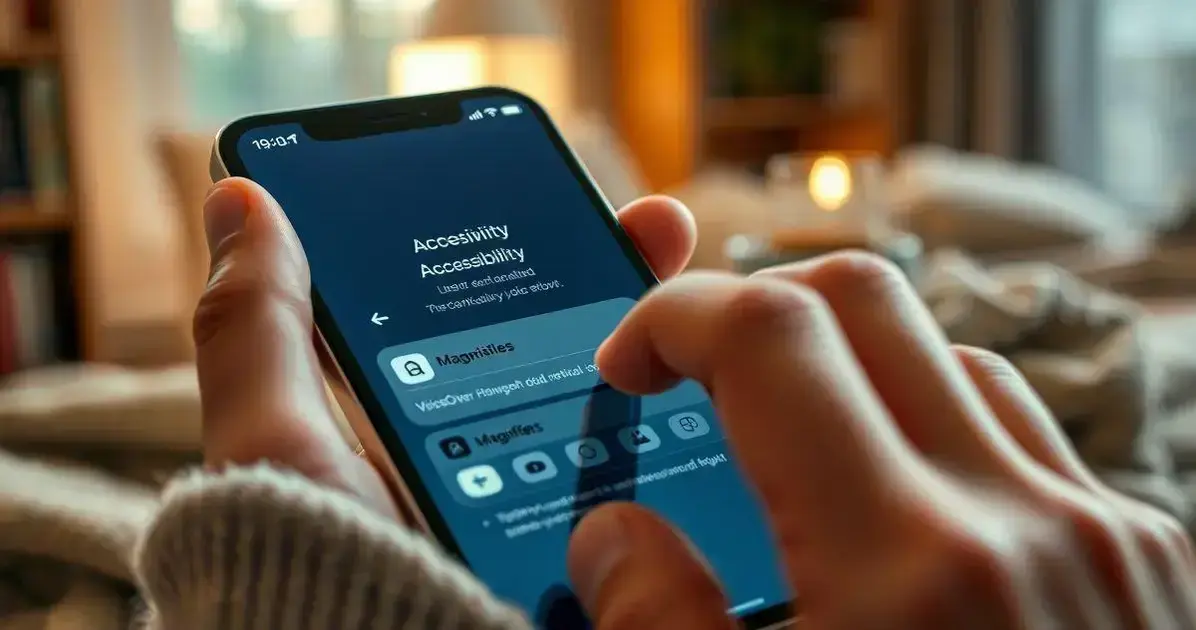
iPhone accessibility features are designed to help everyone use their devices easily. One of the most helpful features is VoiceOver. This screen reader describes everything happening on your screen, making it easy for those with visual impairments to navigate their phones. With simple gestures, users can learn to control their iPhone completely by listening.
Another useful feature is Magnifier, which turns your iPhone into a powerful magnifying glass. If you struggle to read small text or details, simply open the Magnifier and zoom in. You can even adjust the brightness and use filters for better visibility, making everyday tasks much easier.
Don’t overlook AssistiveTouch, which helps those with motor difficulties. This feature creates a floating button on your screen that gives you easy access to gestures and controls, like pinching and swiping. Customizing this button can simplify navigation, helping users interact with their iPhones more comfortably.
Siri Shortcuts for Efficiency
Siri Shortcuts are a fantastic way to increase your efficiency with your iPhone. These shortcuts allow you to complete tasks faster by using voice commands. For example, you can create a shortcut to send a text to a friend or play your favorite playlist just by asking Siri. This saves you time and keeps you focused on what you’re doing instead of fumbling with your phone.
You can also build custom Siri Shortcuts for daily routines. If you have a morning routine that includes checking the weather and your calendar, set up a single command that does it all. Just say, “Good morning,” and Siri will read you the weather and any important events for the day. This simple trick helps keep your mornings smooth and organized.
Finally, don’t forget to explore the Shortcuts app. It offers many premade shortcuts that you can easily add and modify. You might discover new ways to streamline your daily activities. With just a little setup, you can transform your device into a powerful assistant that makes life more manageable.
Organizing Apps Efficiently
Organizing your apps efficiently on your iPhone can save you time and make your device easier to use. Start by grouping similar apps together. For example, put all your social media apps in one folder. This way, you can find them quickly without searching through multiple screens. Simply tap and hold an app until it wiggles, then drag it onto another app to create a folder.
Another helpful trick is to prioritize your most-used apps. Place them on your home screen for easy access. You can also customize the order of apps within folders, moving your favorites to the top. This simple adjustment helps you access everything you need without a hassle, keeping your workflow smooth and efficient.
Don’t forget about using the App Library, which automatically organizes your apps by categories. Swipe to the right past your last home screen to view it. The App Library helps reduce clutter while making it easier to find unused apps. You can keep your home screen clean but still have quick access to everything you need.
Hidden Features in iOS
iOS is packed with hidden features that can make your life easier. For example, did you know you can create custom vibrations for your contacts? Go to Settings, then Sounds & Haptics, and choose Ringtone. Tap on Vibration, and you can pick a preset or create your own. This way, you’ll know who’s calling or texting without even looking at your phone!
Another great secret is the ability to scan documents directly with your Notes app. Simply open a new note, tap the camera icon, and choose “Scan Documents.” Your iPhone will automatically detect the edges of the document and capture it. This feature saves you the hassle of downloading additional apps for scanning.
Lastly, have you ever used the Back Tap feature? This allows you to perform actions by tapping the back of your iPhone. Go to Settings, then Accessibility, and find Touch. From there, you can set up double or triple taps to trigger actions like taking a screenshot or opening an app. This hidden gem makes using your phone even more convenient.
iCloud Tips and Tricks
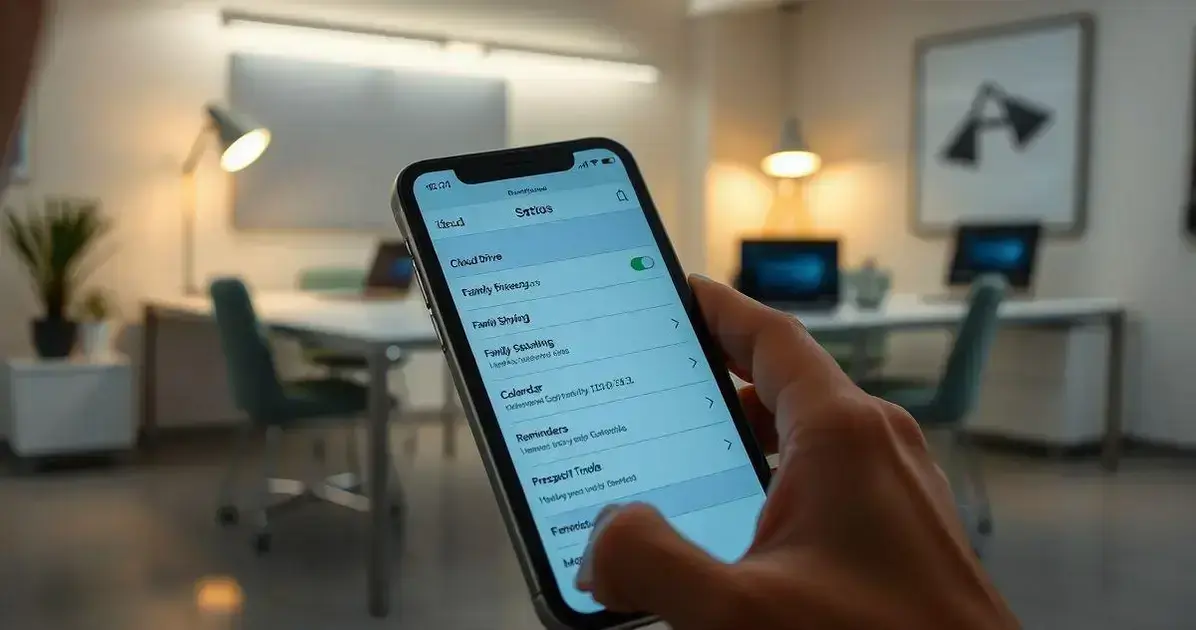
iCloud is a powerful tool that helps you back up and share your data across all your Apple devices. One great tip is to set up iCloud Drive to store files. This allows you to access your documents, photos, and other files from any device. Simply enable iCloud Drive in Settings and start saving files in the iCloud folder. You’ll never have to worry about losing your important files again!
Another useful trick is to share your iCloud storage with family members. You can create a Family Sharing group that allows up to five members to share your storage plan. This is a great way to save money while ensuring everyone has access to plenty of space for their photos, apps, and data. Setting this up is easy and can be done in the iCloud settings.
Lastly, don’t forget about syncing your contacts, calendars, and reminders through iCloud. This feature keeps everything updated across your devices. If you make a change on your iPhone, it automatically updates on your iPad or Mac. This seamless syncing makes it easier to stay organized and ensures you always have the latest information at your fingertips.
Enhancing Privacy Settings
Enhancing your privacy settings on your iPhone is an important step to protect your personal information. Start by reviewing the privacy settings in the Settings app. Here, you can manage which apps have access to your location, photos, and contacts.
Disabling location services for apps that don’t require it can help keep your data secure while still allowing your favorite apps to function properly.
Another way to enhance your privacy is to enable features like ‘Sign in with Apple’ for apps that offer this option. This feature lets you create accounts without sharing your email address. Instead, Apple provides a unique random email that forwards to your real email, keeping your personal information hidden while you still enjoy the app’s benefits.
Lastly, consider using features like ‘App Tracking Transparency’ to control how apps track your activity across other apps and websites. By turning this feature on, apps must ask for your permission before tracking your online behavior. This added layer of privacy helps you take back control of your data and ensures your online activities are kept private.